

Testing & Editing Active Surveys
What's on this page
About Testing/Editing Active Surveys
Once you’ve created your survey, you’ll want to test it to be sure it looks and behaves exactly how you need. Similarly, if you need to make changes after you’ve launched your survey and started collecting results, it’s important to understand what types of changes are acceptable and what types might not be best for your data collection. This page outlines your options for testing your survey and for editing an active survey.
Testing an Active Survey
Once your survey is active, you can test it through the preview survey link, anonymous link, and personal links. However, we recommend testing through the preview survey link as these test responses will not count toward your account’s total response limit.
Qtip: If you want to see how your dataset or reports will look before sending out your survey, you can also generate dummy data in the tools menu of the Survey tab. These test responses will not count toward your account’s response limit.
Testing with the Preview Link
The preview link lets you see the survey as your respondents would. You can also submit preview responses this way and see what your data will look like on the backend. Any responses submitted using the preview link will not count toward your response limit and will be flagged in the results for easy identification and deletion.
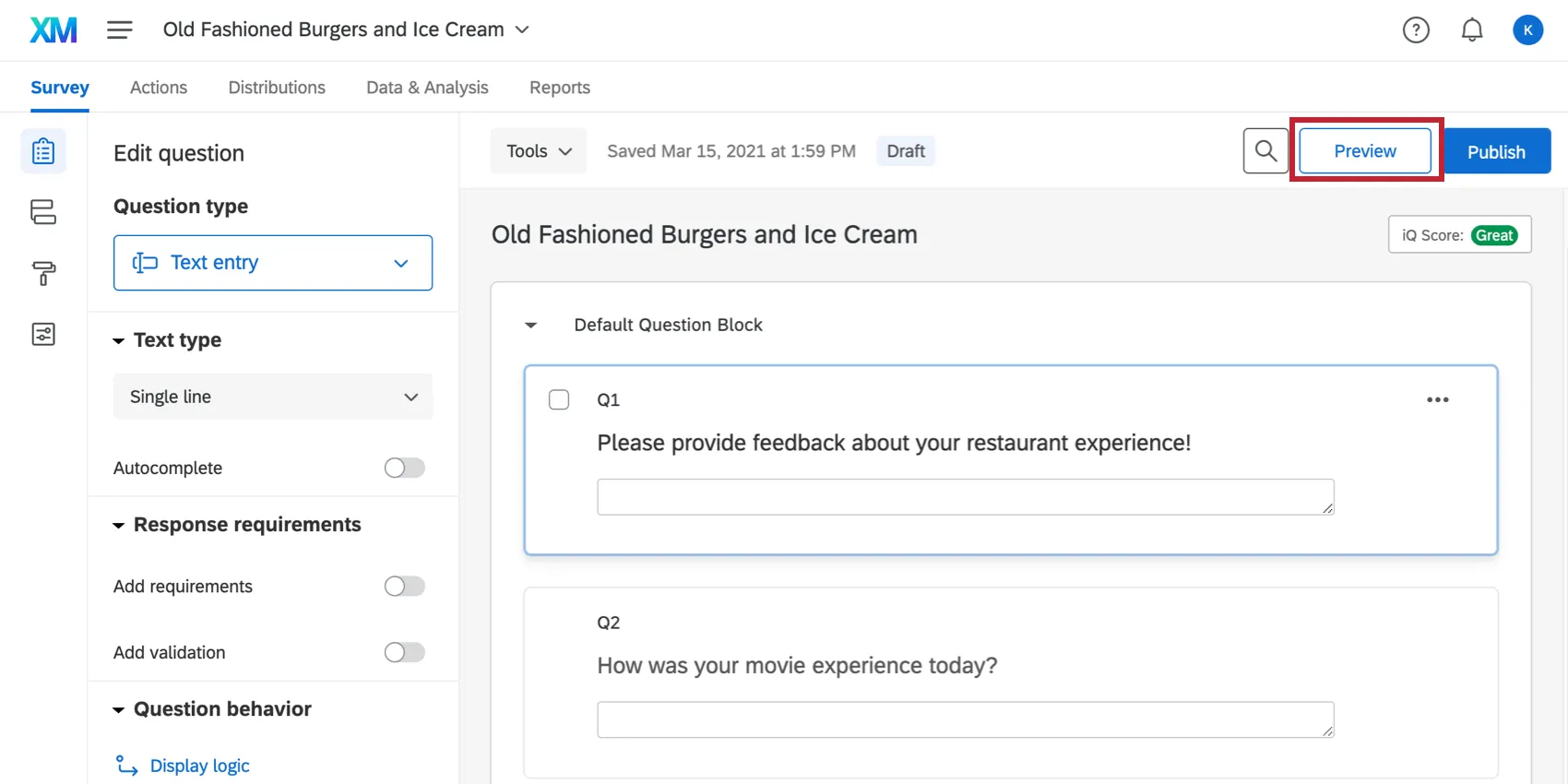
To preview your survey, click the Preview button in the Survey tab. From there, you can then click through the survey yourself, or copy and paste the URL to send to your testers.
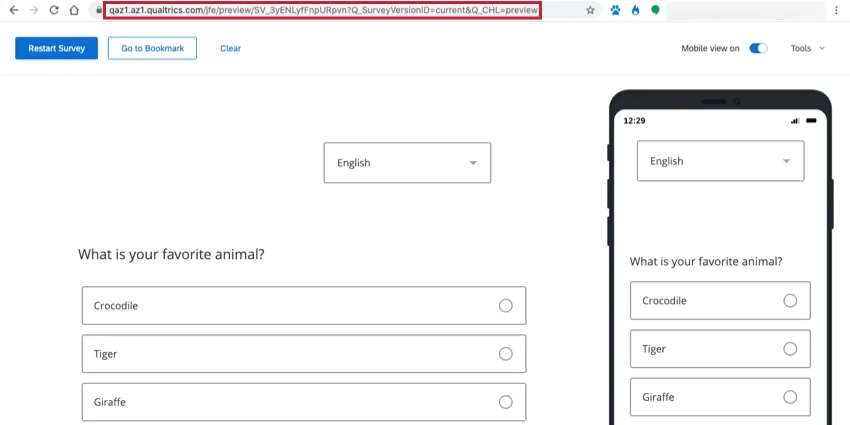
You can also get the preview survey link to your testers via the email distribution options within Qualtrics. Just select Set up a test message when composing your email. For more information on this visit our Email Survey Invitations page.
Testing with the Test Survey Responses
It is possible to generate test data for your survey. This data does not count towards your auditable responses. This method is best if you need to generate a lot of data to preview your reports and exported data, but don’t want to fill out the survey over and over again.
Testing with the Anonymous Link
Warning: This method of testing counts towards your account’s response limit. Proceed with caution!
If you decide to use the actual anonymous link for testing, go to your Distributions tab and and select the Get a single reusable link option.
When testing with this link, you might experience some of this behavior:
- When I click on the link, it takes me to the middle of the survey. By default, the survey has Allow respondents to finish later enabled in your survey options. This option means that if you close the survey without finishing, the next time you click on the link, you will be taken to where you left off previously.
- I just edited my survey but the changes do not show when I’m testing. Confirm that you have published your survey. If your changes are published, you are likely not seeing changes because the first time you click on the survey link, survey settings are locked into place. To see any new changes, you can clear your browser cache or open the link in a different browser.
Testing With Individual Links
Warning: This method of testing counts towards your account’s response limit. Proceed with caution!
If you need to test that your survey is retrieving information from a contact list, you can add yourself as a contact and email an individual link to yourself. Be sure to include all the same information for yourself as your other contacts have.
Editing an Active Survey
You can still make changes to your survey even after it’s activated, but you’ll want to be cautious about making changes if you have already collected real data. Certain survey alterations can invalidate or delete parts of your already collected survey data. This section will describe which changes will delete data, and which changes will not delete data.
Qtip: The Data & Analysis tab always displays data based on the current version of the survey, even if the changes are not yet published (for example, deleting a question from the survey will immediately remove its data from your dataset). You can restore an earlier version of your survey to undo your changes, if needed.
What will respondents see if I make changes?
Changes will only be presented to respondents after you click the Publish button. Then, only respondents who didn’t start the survey until after you published will see new changes you’ve made to the survey.
If you want respondents who started before you published to experience the changes, then they will need to start their survey over.
- If you distributed the survey through email or personal links, send them a new individual link.
- If you distributed the survey through the anonymous link, ask them to clear their browser cache, open an incognito window, or try to take the survey in a different browser.
Qtip: If you have a publishing status of Changes Live, or know you activated your survey before publishing existed, your changes will go live before you publish! However, only respondents who start the survey after you’ve made changes will see them.
If you click Publish, all changes made from that point on will not go live until published. This is the standard for surveys with publishing.
What kinds of changes are OK?
The following edits will not delete previously gathered survey data:
- Superficial text edits (e.g., fixing a typo or changing the font).
- Adding questions anywhere in the survey.
Adding choices to the end of a list of choices.

Warning: An exception to this statement is the drill down question (all other question types can be updated according to this statement). You cannot edit a drill down’s answer choices after you have collected responses without invalidating the previously collected data. (“Collected data” includes preview and test responses.) 2 possible workarounds include creating a copy of the survey before you update the answer choices to avoid invalidating any data, or creating a new drill down question with the updated answer choices and using display logic to hide the previous question.
- Rearranging the order of questions or of blocks in the survey flow.
- Editing, adding, and removing recode values.
- Editing, adding, and removing scoring.
- Adding and removing branch logic, display logic, and skip logic.
- Edits to the look and feel.
Adding NEW embedded data or embedded data from the contact list to the survey flow.

Qtip: Unless this is embedded data from the contact list, embedded data will NOT be added to completed respondents retroactively. It will only be added to new respondents going forward.
What kinds of changes are NOT OK?
The following edits will delete or alter previously gathered survey data:
- Any edits to an existing drill down question’s answer choices.
- Changing the question type or question variation (e.g., changing from a multiple choice question to a slider question, or changing from a likert matrix table to a bipolar matrix table).
- Enabling or disabling Autocomplete for text entry questions.
- Modifying the response requirements or validation of a question.
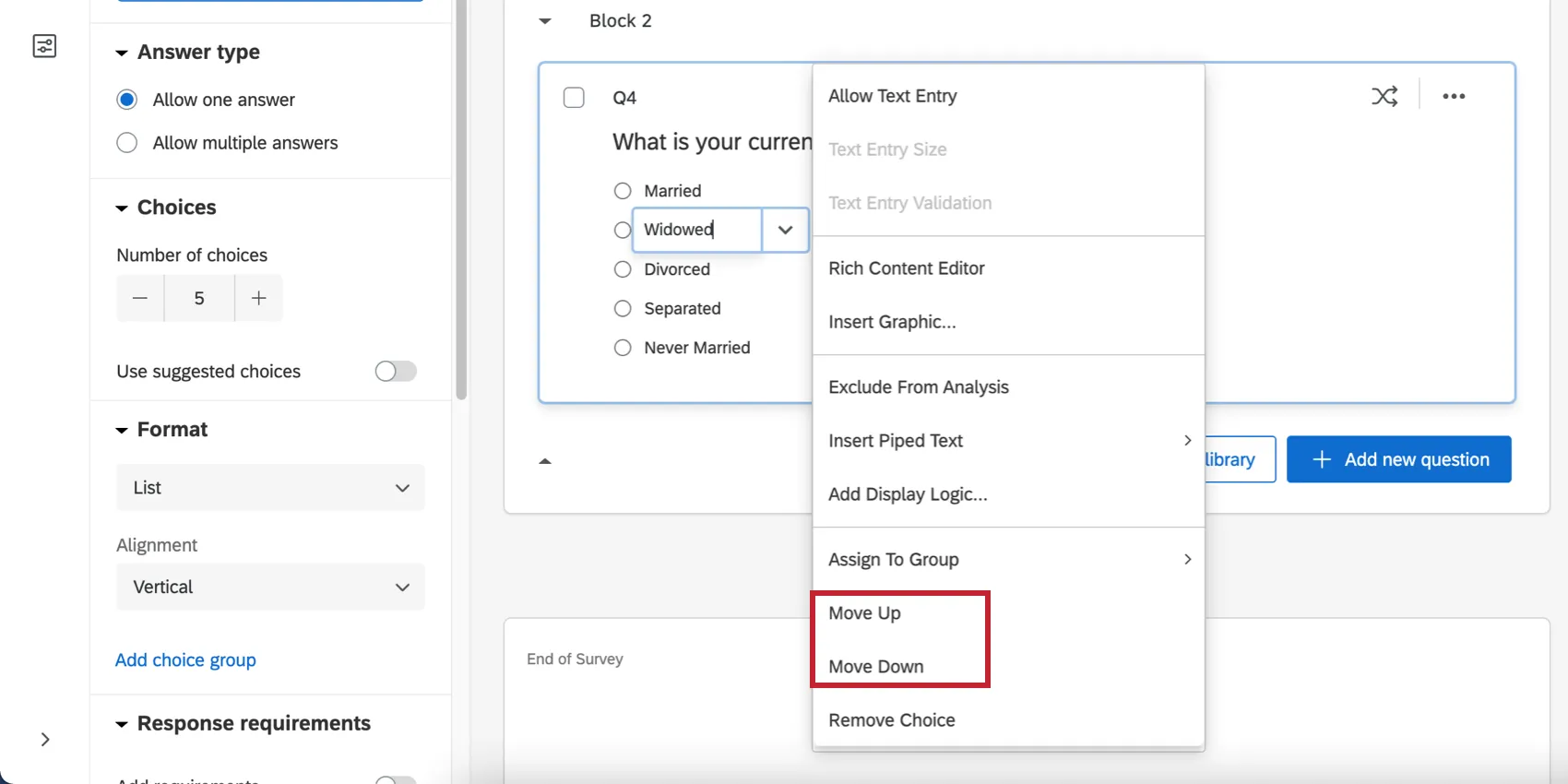
Rearranging answer choices with Copy & Paste (use Move Up and Move Down in the choice menu instead).
- Deleting questions or answer options (deleting a question or answer also deletes all response data associated with that question or answer).
- Adding or removing loop and merge.
- Reversing answer choice order when using suggested answer choices.
We recommend never deleting questions or answer choice options. Instead, we recommend hiding unwanted questions and answer options with display logic or undisplayed items in advanced randomization, which will preserve the already collected data.
Qtip: If you accidentally made some unfavorable edits to your survey, you may be able to undo them or restore a previous version of your survey. See our Saving and Restoring support page for more details.
FAQs
Can I edit a live survey that is currently being taken?
Can I edit a live survey that is currently being taken?
- Who will see the changes? Only those who have not yet started the survey will see the new changes. Anyone who started the survey prior to your changes will see the original survey, not the updated one.
- What kinds of changes are okay? Superficial text edits are fine (e.g., fixing a typo or changing the font), as are adding questions or answer options. However, deleting questions or answer options can harm previously collected data. We recommend never deleting answer choice options or questions (unless you are 100% positive that you will not ever need any of the collected data associated with those answer choice options or questions). Instead, we recommend hiding unwanted questions and answer options with Advanced Randomization.
How do I save/undo my edits to my survey?
How do I save/undo my edits to my survey?
Often, Qualtrics will allow you to undo a change if you hit Ctrl + z (PC) or Cmd + z (Mac) on your keyboard. However, not all changes are undoable.
Qualtrics automatically saves previous versions of your survey when you make edits or publish your survey. Survey versions are a snapshot of your survey and its settings and allow you to view any past version and restore your survey to that form. See the linked page for more information on this feature.
How do I test my survey before sending it out?
How do I test my survey before sending it out?
To learn more, visit our page on Testing and Editing an Active Survey.
I want to remove a question or answer choice from a survey, but I’ve already collected some data. What do I do?
I want to remove a question or answer choice from a survey, but I’ve already collected some data. What do I do?
That's great! Thank you for your feedback!
Thank you for your feedback!